
Defining the Data Model
With the still very high level requirements we can at least start with drafting a data model. For sure een this will evolve over time, but we need to have a starting point for the CRM implementation in Limbas. And this is always starts with the data model.
Working with the Limbas Administration tools
Let’s start with the customer table at the first place.
When we start Limbas after a fresh install, we see a quite empty page.
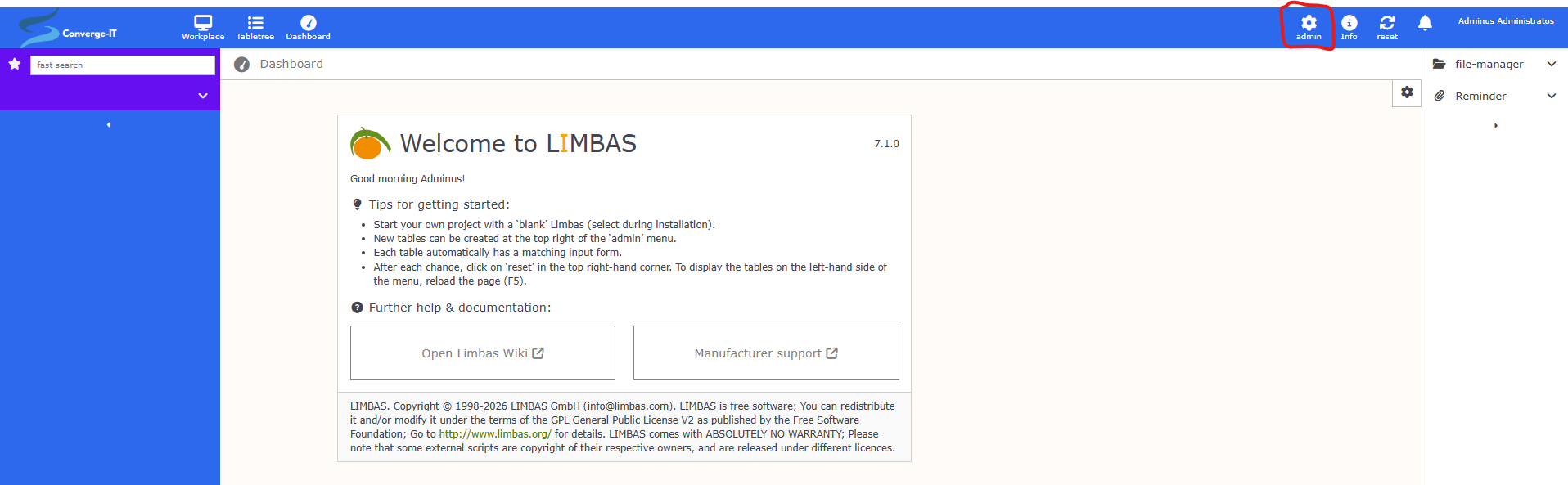
Click on the ‚admin‘ icon (red marked in the upper right area) and the whole Limbas administration menue appears on the left hand site.
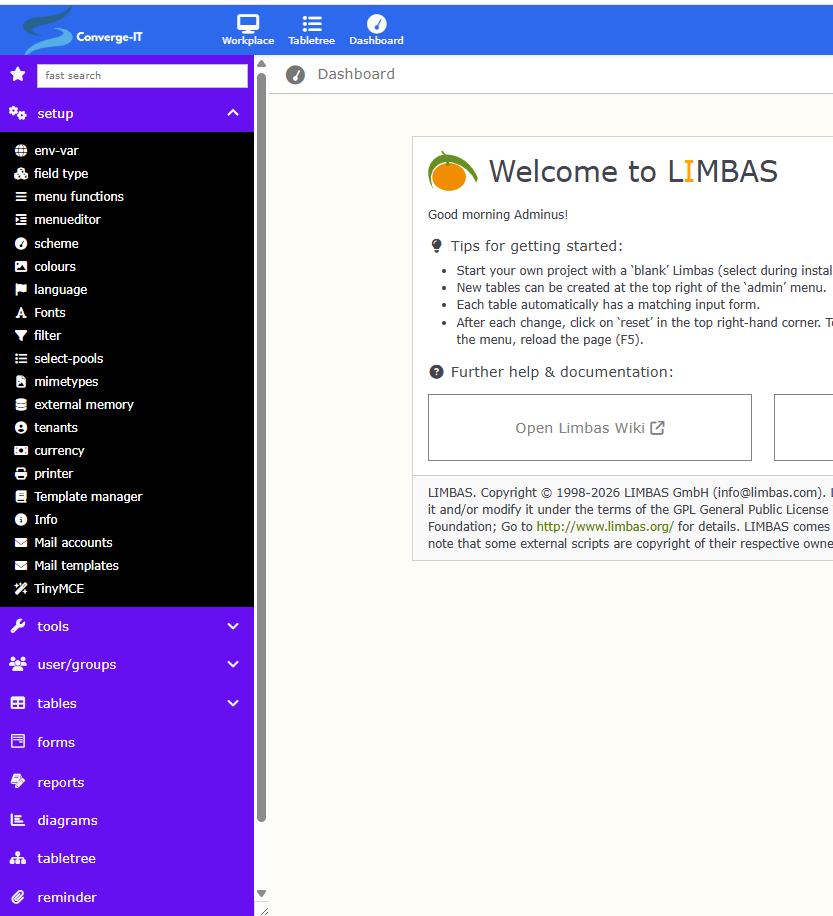
Creating the CRM application
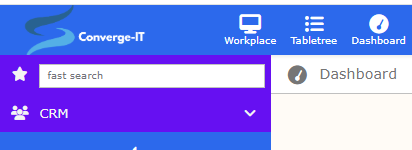
Click on the ‚table‘ menue item and provide a tbalegroup name such as ‚CRM‘. here are a couple of predefined icons shipped with Limbas, so I choose ‚lmb-crm‘ as the icon representing may CRM app going forward.

I recommend to use a 2nd browser tab where you also launch your Limbas application, but here without the ‚admin‘ mode activated. Whenever you made a change in the ‚admin‘ mode, refresh you 2nd Lombas instance (or alternatively log out and in), and you will see your results.
Creating the Customer table
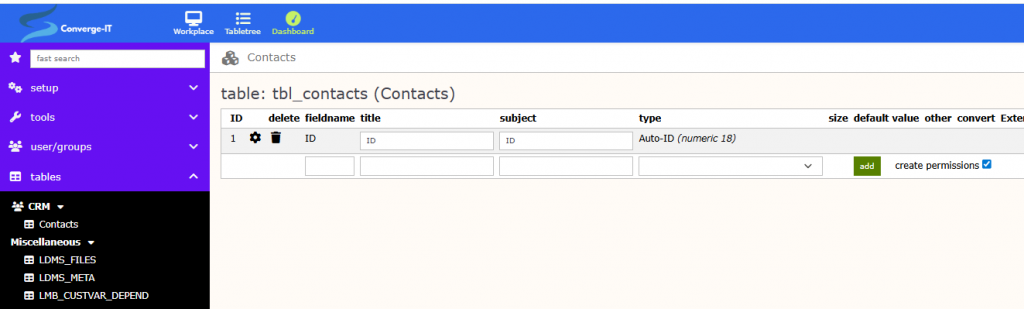
Now click on your CRM table-group and add your first table. It is good practice to give a physical table name (as it appears in the postgreSQL database) and a subject which means the name of the table your users will see.
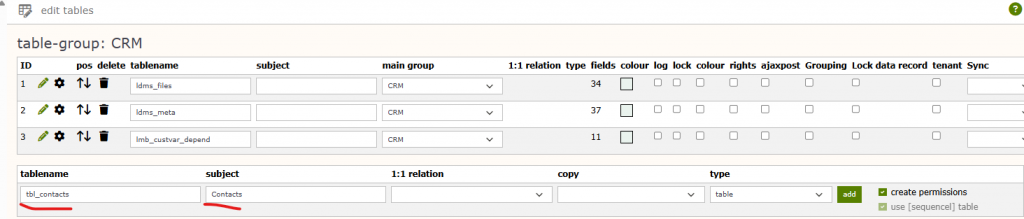
After creating the table ‚Contacts‘ and assigning it to the table-group ‚CRM‘ you can see the result in the left hand side admin menue after login/logout as admin user. You can also see that I created a table group ‚Miscellaneous‘ where I moved the Limbas syste tables into. They have no relevance for us right now.
Adding fields to the Contacts table
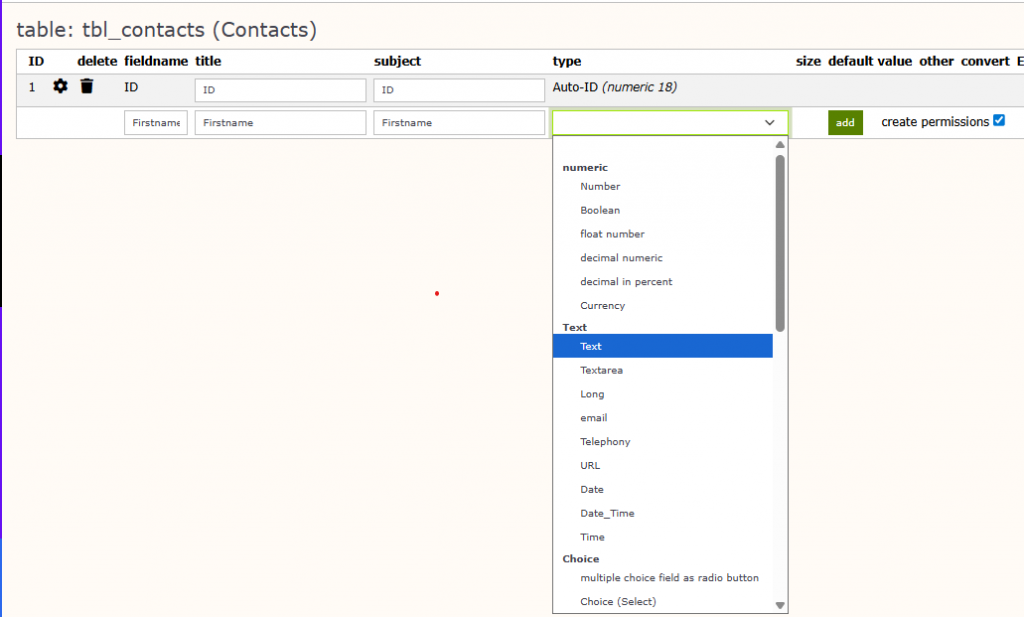
While our first table has been created, we are now able to add all the fields we would like to manage as contacts data to the table. We start with the firstname. With ‚fieldname‘, ‚title‘ and ’subject‘ we have in total three identifiers for a field. Fieldname is the physical field name in the database. Title represents how this table is identified within Limbas and subject is what the user sees as name of the field. The field type can be selected out o a huge range predefined field types. Within Limbas it is possible to generate own field types, but this is not what we want to do right now. When designing the Contacts table we will learn a lot of useful predefined field types. For our first field ‚Firstname‘, we select ‚text‘ as appropriate field type.
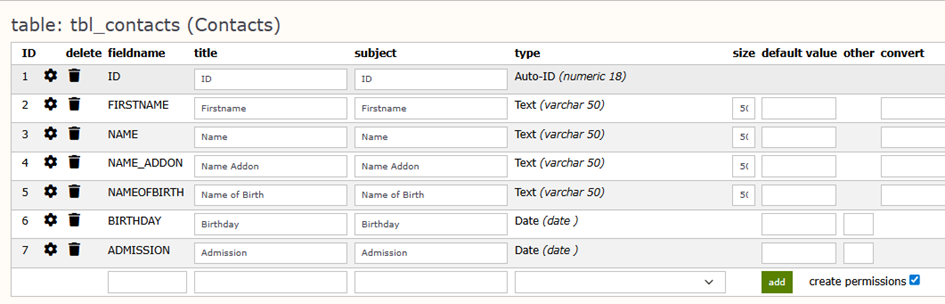
We continue adding additional fields, which we use to store contact data details of a person.
You see, this is still very simple and misses a lot of information such as company, addresses, etc.
However, we want to start small, so we leave it with this simple table right now. It contains only simple field types such as text or date. Later on, we get to some more advanced field types that are supported by Limbas.
Adding more complex field types
We would like to add salutation, gender and job title, but this as a select from a drop-down menu rather than always typing it in. Makes sense for those type of data because they often repeat themselves.